August 2026
New Features
Section titled “New Features”AI-Powered Risk Import from Narrative Documents
Section titled “AI-Powered Risk Import from Narrative Documents”You can now import risks directly from a narrative document — a pen-test report, an audit memo, a vendor security assessment — instead of entering them one at a time. Upload a text, Markdown, PDF (with selectable text), or Word document, and an AI agent reads it and proposes a set of candidate risks.
Each proposed risk is shown side-by-side with the source document, with the exact passage it was drawn from highlighted, so you can verify the AI’s read of the document before anything is added to your register. Edit any proposal, discard the ones you don’t want, and only the risks you approve are committed — nothing is added to the register automatically.
Next to the Add Risk button, select Import via AI and provide the document as delivered: PDF, Word, Markdown, or plain text. No reformatting is required. The AI reads the document and extracts the actionable risks, normalized to the fields, structure, and details that make a true system of record.
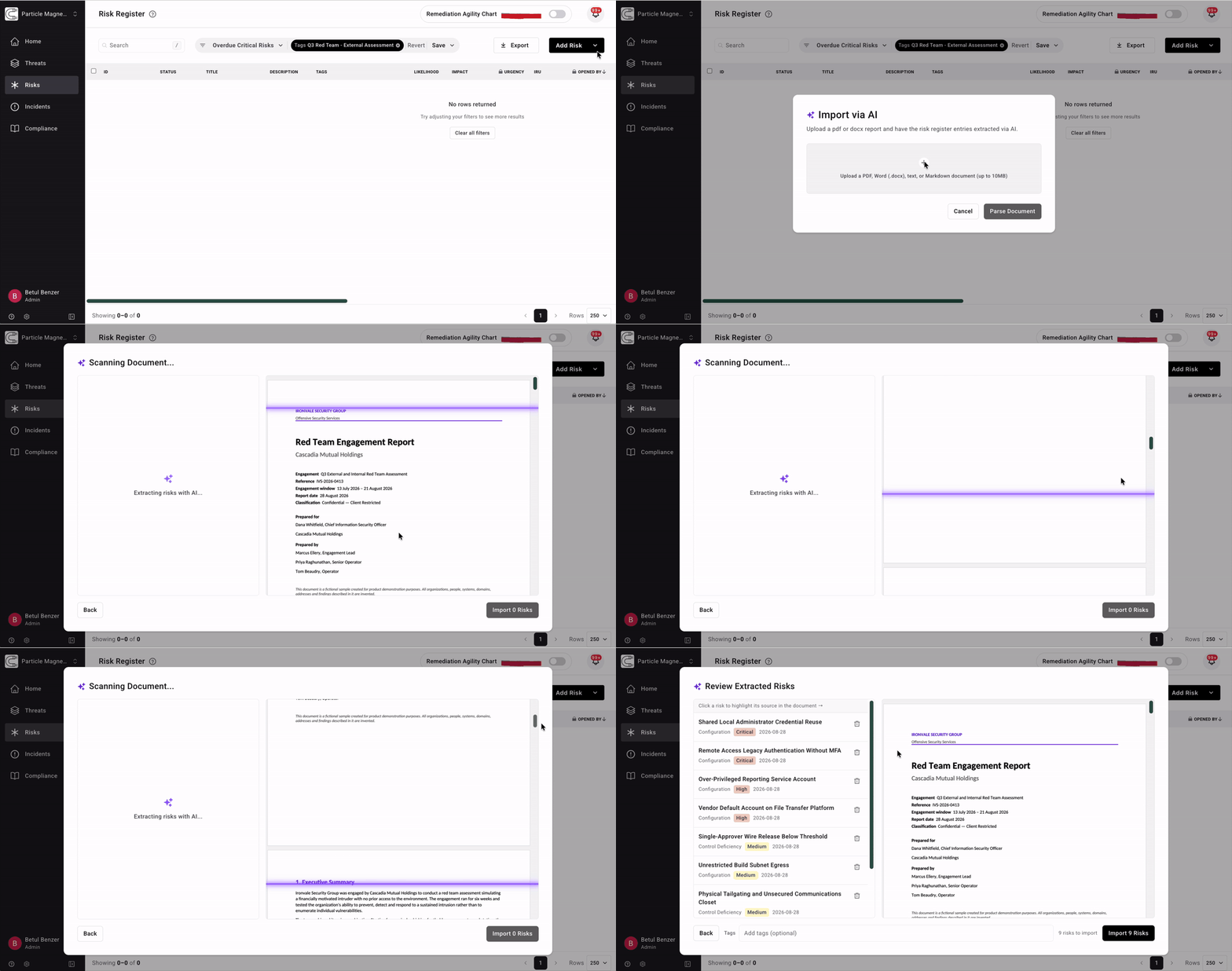
Each risk is previewed beside the source document, and selecting it highlights the passage it came from. Title, description, class, “initially reported urgency” (IRU), source, and discovered date are editable if needed, and land in the register with one approval click.
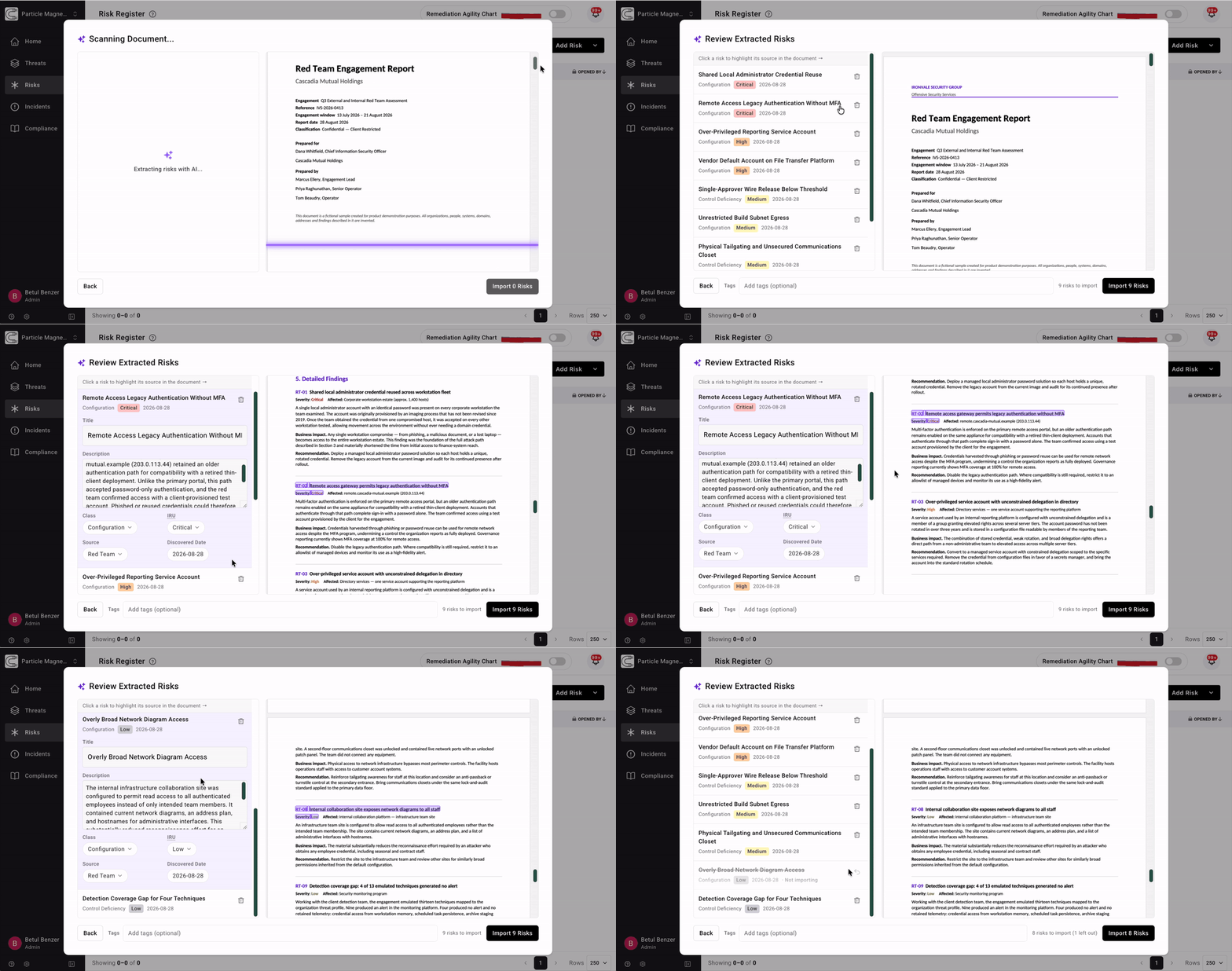
You can also tag the entire batch with the engagement tag, such as “Q3 Red Team: External Assessment.” Every finding keeps its origin from then on. Six months later, the report behind any engagement is one filter away.
Once imported, these findings are risks in your register. They are scored in your organization’s context, under the same written procedure as every other risk. The testers’ severity is preserved as the initially reported urgency. The urgency your program acts on comes from your procedure, with the rationale recorded. Each risk also maps to the threat objectives it affects, using the same taxonomy as your other risks and incidents. A credential-reuse finding from a red team engagement sits alongside every other risk to that objective.
New Compliance Documents, Version Adoption, and an Editable Viewer
Section titled “New Compliance Documents, Version Adoption, and an Editable Viewer”Two new compliance documents join the existing six: the Generative AI Acceptable Usage Policy (AIUP) and the Bug Bounty Program Scope (BBP).
Every compliance document now uses calendar-based version numbers in YYYY.MM.NN form (for example, “2026.09.01”) instead of “v1”/“v2”, and adopting a new version of a document is opt-in — nothing about your current document changes until you choose to adopt the newer version. The document viewer itself is now directly editable, with Archive, Live, and Draft tabs for moving between versions.
Organization Document Supplements
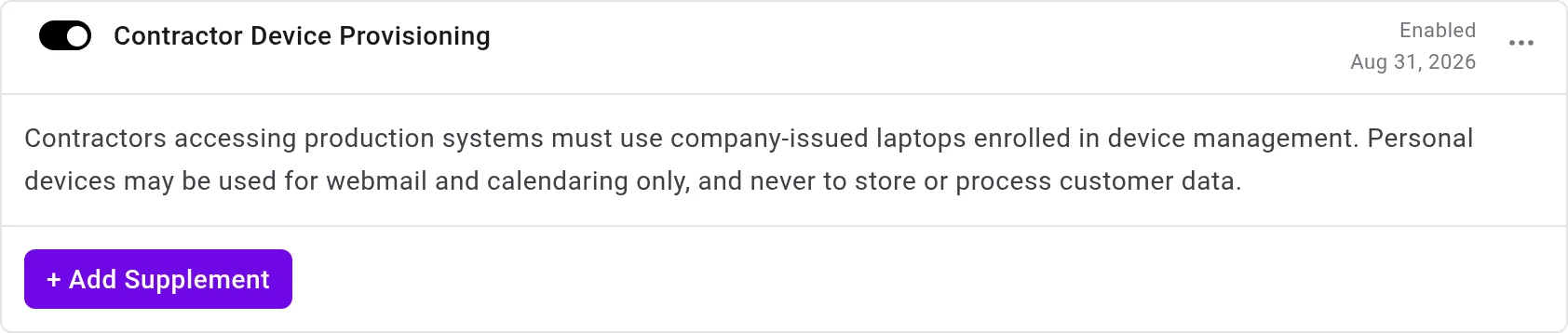
Section titled “Organization Document Supplements”You can now attach your own supplemental content to specific sections of a compliance document — for example, adding organization-specific detail to a section of your Cybersecurity Policy. Supplements go through the same approval workflow as any other document edit, and appear both in the on-screen document and in the downloaded Word version.
AIUP: Coordinated Selections and an Editable AI Tools Register
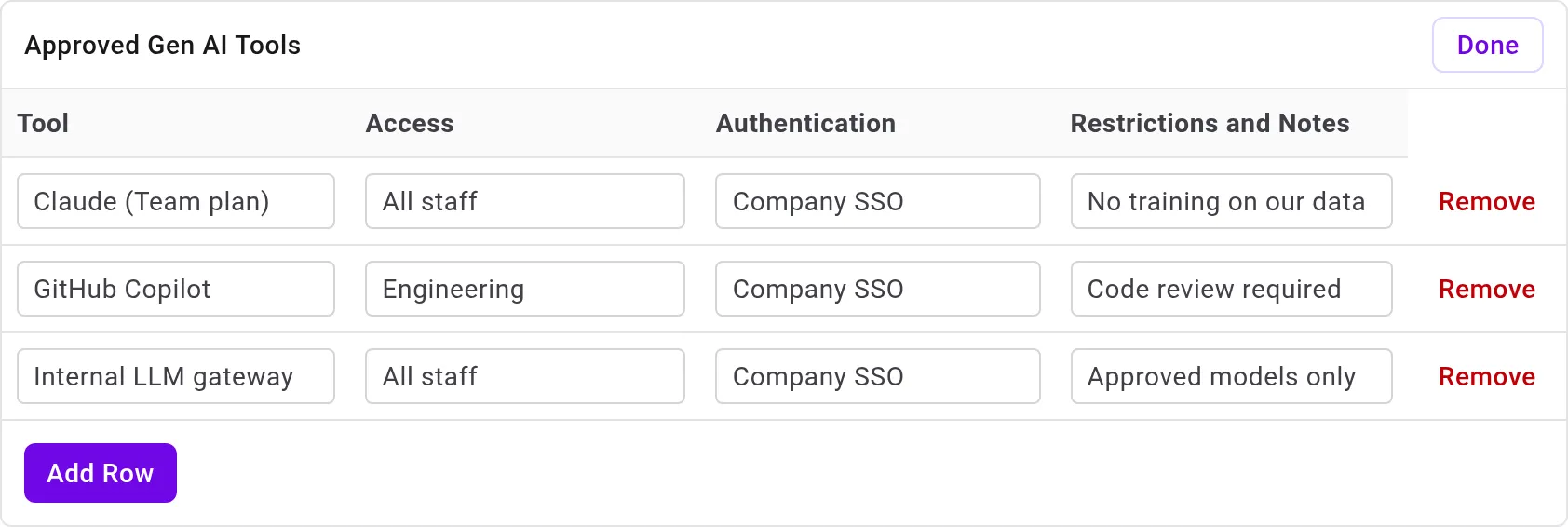
Section titled “AIUP: Coordinated Selections and an Editable AI Tools Register”The Generative AI Acceptable Usage Policy (AIUP) now responds to your choices as one document: selecting a governance body or an authentication posture updates every passage that depends on that selection, so the document always reads consistently with what you picked. The approved AI tools register (Appendix A) is a fully editable table, ready to record the tools your organization has cleared and the terms attached to each. Multi-paragraph sections across all compliance documents also now render with their paragraph breaks intact.
Board Decks Now Generate in the Background
Section titled “Board Decks Now Generate in the Background”Generating a compliance board deck or report no longer ties up your browser tab waiting on the result. Kick off a report and a status chip tracks its progress; the finished report downloads automatically once it’s ready. A new Generated Reports shelf on the Compliance page lists your past reports so you can re-download one without regenerating it.
Reports also gain two new additions: risk and incident overview slides — opened/closed counts, SLA and MTTR performance, trend sparklines, and an AI-written narrative summary — and flow appendix slides visualizing the same risk urgency and incident severity flow diagrams shown on the Home dashboard.
Parent-Only Filter for Risks and Incidents
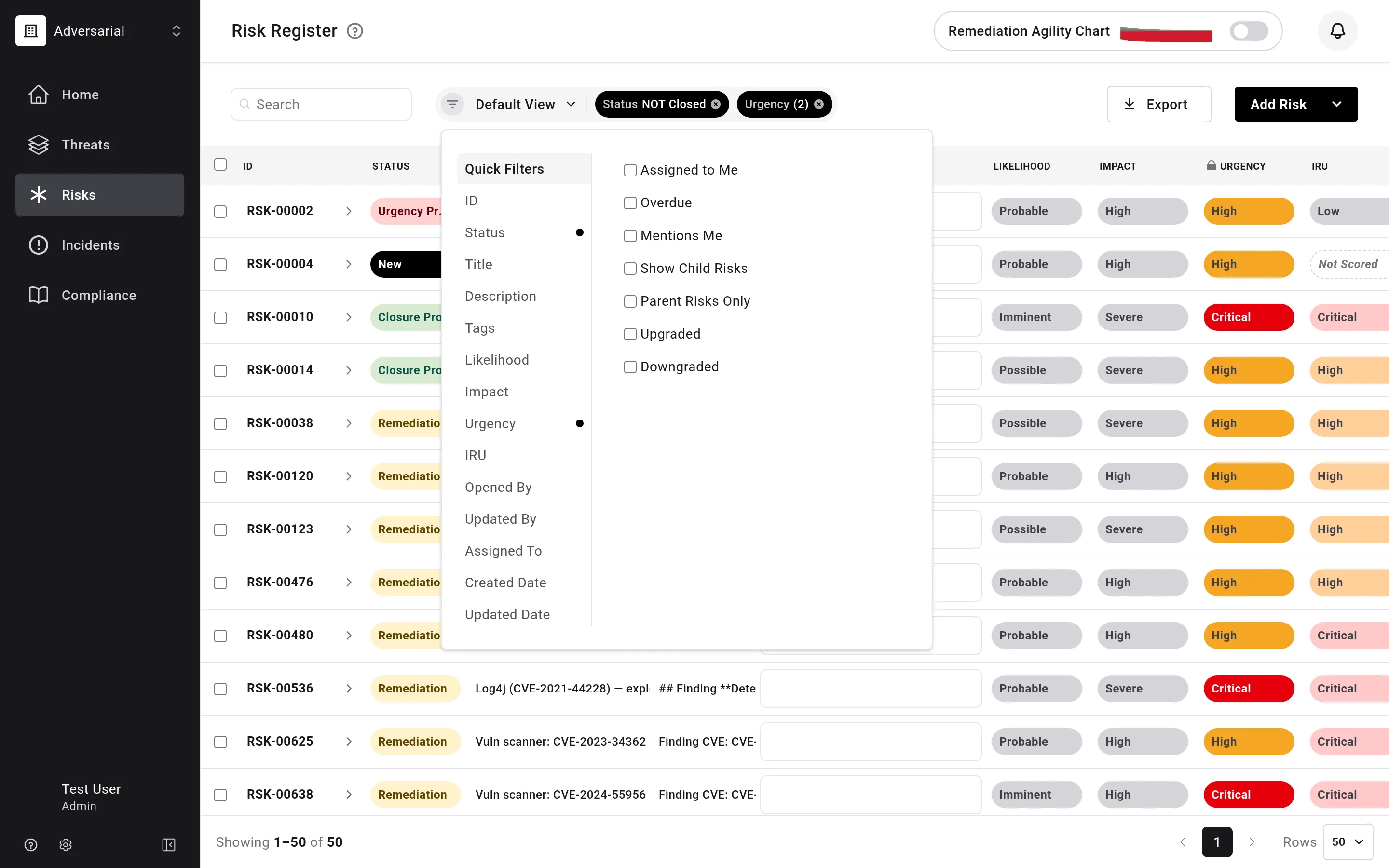
Section titled “Parent-Only Filter for Risks and Incidents”The risk and incident registers gain a Parent Risks Only / Parent Incidents Only quick filter, alongside the existing Show Child Risks/Incidents toggle — so you can now narrow a register down to only the records that have linked children.
Δ (Delta) Column for Urgency Shift Tracking
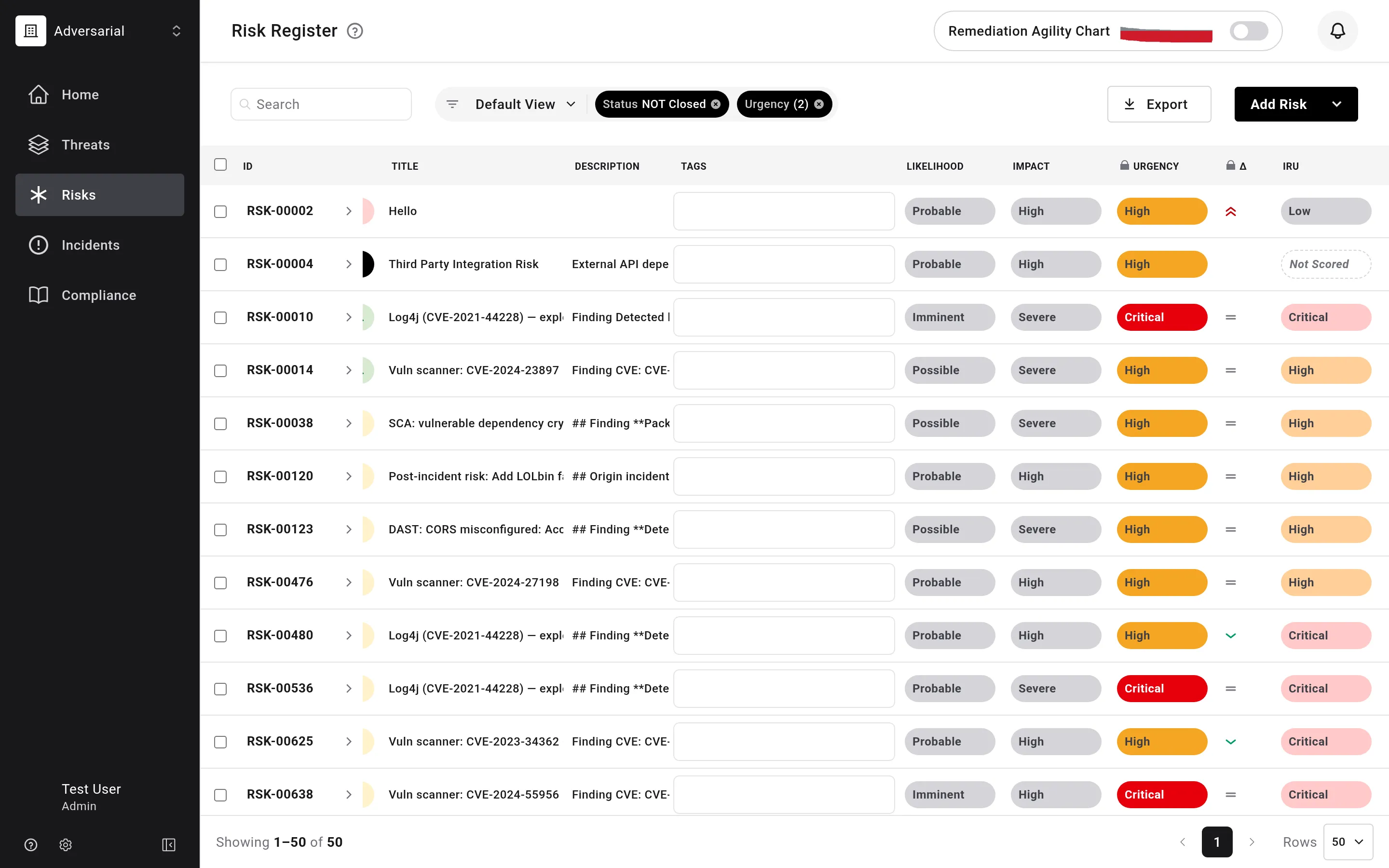
Section titled “Δ (Delta) Column for Urgency Shift Tracking”A new optional Δ column, available from the column picker on the risk register, shows how far a risk’s urgency has moved from its initially reported urgency to its current score — making it easy to spot risks that have escalated or de-escalated since intake.
Urgency/Severity Filters on Home Summary Cards
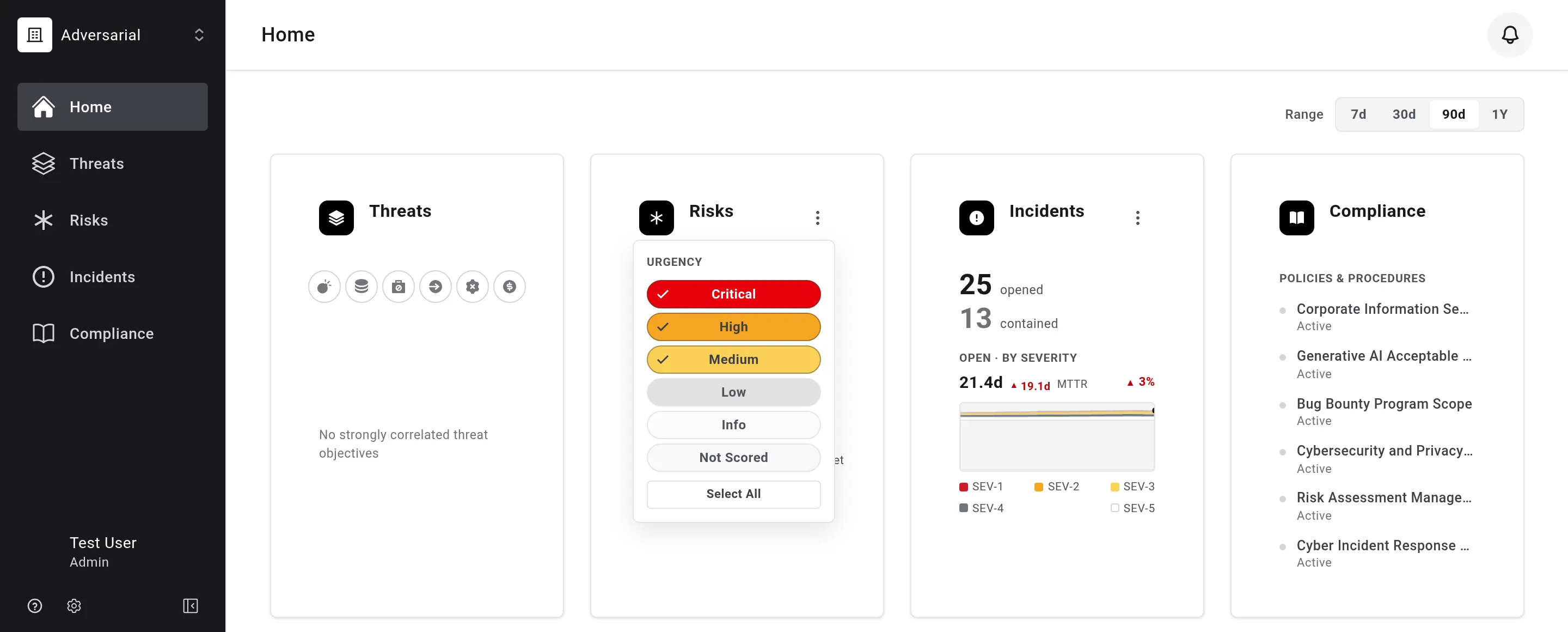
Section titled “Urgency/Severity Filters on Home Summary Cards”The Risk and Incident summary cards on the Home dashboard now have their own filter, letting you narrow each card down to specific urgency or severity bands (or Not Scored). The filter reshapes everything on the card — counts, the SLA sparkline, MTTR, and the severity trend — and carries through when you click into the register.
System Theme Option
Section titled “System Theme Option”Settings > Preferences now offers a System option alongside Light and Dark, which follows your operating system’s light/dark setting automatically. Everyone who hasn’t explicitly chosen a theme now defaults to System; anyone who had already chosen Dark keeps Dark.

Your Organization in the URL
Section titled “Your Organization in the URL”Every organization now has a permanent workspace URL: pages live at app.adversarial.com/your-organization/…, so a link to a risk, a register view, or a report unambiguously names the organization it belongs to — and a shared link opens in the right workspace for whoever follows it. The workspace URL is chosen when an organization is created, with a live availability check. Existing bookmarks and links keep working: legacy addresses redirect to the new form, and a member of several organizations following an ambiguous old link is offered the organization picker with their destination carried along.
Two related quality-of-life changes ship with it: members of multiple organizations now land in the organization they last used when they return, and someone who signs in with a pending invitation sees that invitation first — accept it in one click — rather than a form for creating a new organization. See Getting Started for the onboarding flow.
Choose Your Organization When Connecting Integrations
Section titled “Choose Your Organization When Connecting Integrations”If your account belongs to more than one organization, the consent screen shown when connecting an integration (such as Claude Code or another MCP client) now lets you choose which organization the connection is authorized for, with the listed permissions adjusting to match your role in that organization. Previously the connection silently bound to whichever organization your browser session happened to be in.
Configurable Compliance Reports
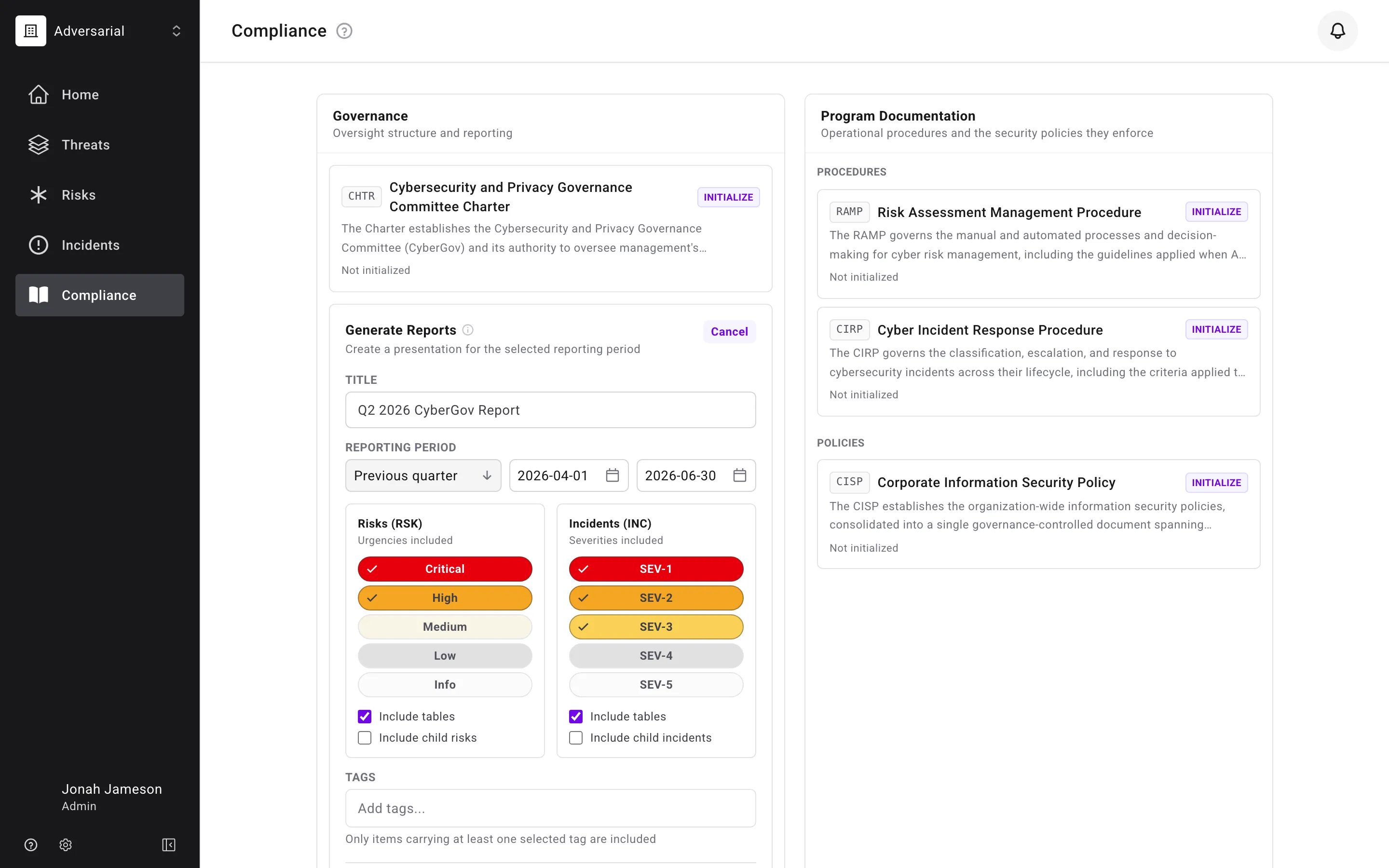
Section titled “Configurable Compliance Reports”The Generate Reports panel on the Compliance landing page has been reworked. Instead of choosing between a fixed Board Deck or CyberGov Report, you now configure a single report directly:
- Reporting Period — pick a preset (Previous Quarter, Current Quarter, Year to Date, Month to Date, Last 3 Months, Last 12 Months, Previous Year) or set a custom date range. The report’s title is generated from your selection and stays editable.
- Urgencies Included / Severities Included — choose exactly which risk urgency and incident severity bands appear in the report, rather than a fixed “and above” threshold. Bands don’t need to be contiguous — for example, a report can include Critical and Medium risks while excluding High. Defaults match the previous CyberGov thresholds (Critical and High risks; SEV-1 through SEV-3 incidents).
- Include tables and Include child risks / incidents toggles for the risk and incident sections independently.
- Tags — scope the report to only items carrying at least one selected tag.
Register tables in the generated deck are now grouped by status, and every slide in a report is generated from a single consistent snapshot of your data, so a report can no longer mix numbers from before and after an in-progress change to a risk or incident.
Every Reported Figure Links Back to the Register
Section titled “Every Reported Figure Links Back to the Register”Generated reports now close with a References slide: one row for each number cited in the Executive Summary and in the risk and incident slide narratives, with the section, the claim as written, and an Open in ARM link. Following a link opens the risk or incident register filtered to exactly the records behind that figure — same reporting period, same urgency or severity bands, same tags and child-record setting — so a board reader can verify any statement in the deck against the live register in one click.
Behind this, every count the AI narratives state is now a figure the platform computed for the period and handed to the AI by name. The AI writes the sentence; it no longer produces or estimates the number. Figures the register cannot display exactly — such as how many risks became overdue during the period — are stated as plain text with no link, rather than linked to something approximate.
To support this, the risk register can now be scoped to a report’s period — the risks discovered, closed, or fallen due within it — and to the overdue position as it stood at a given instant rather than as it stands today. Both arrive through the report’s links and persist with the register like any other filter. See Where the numbers come from.
Dark Mode
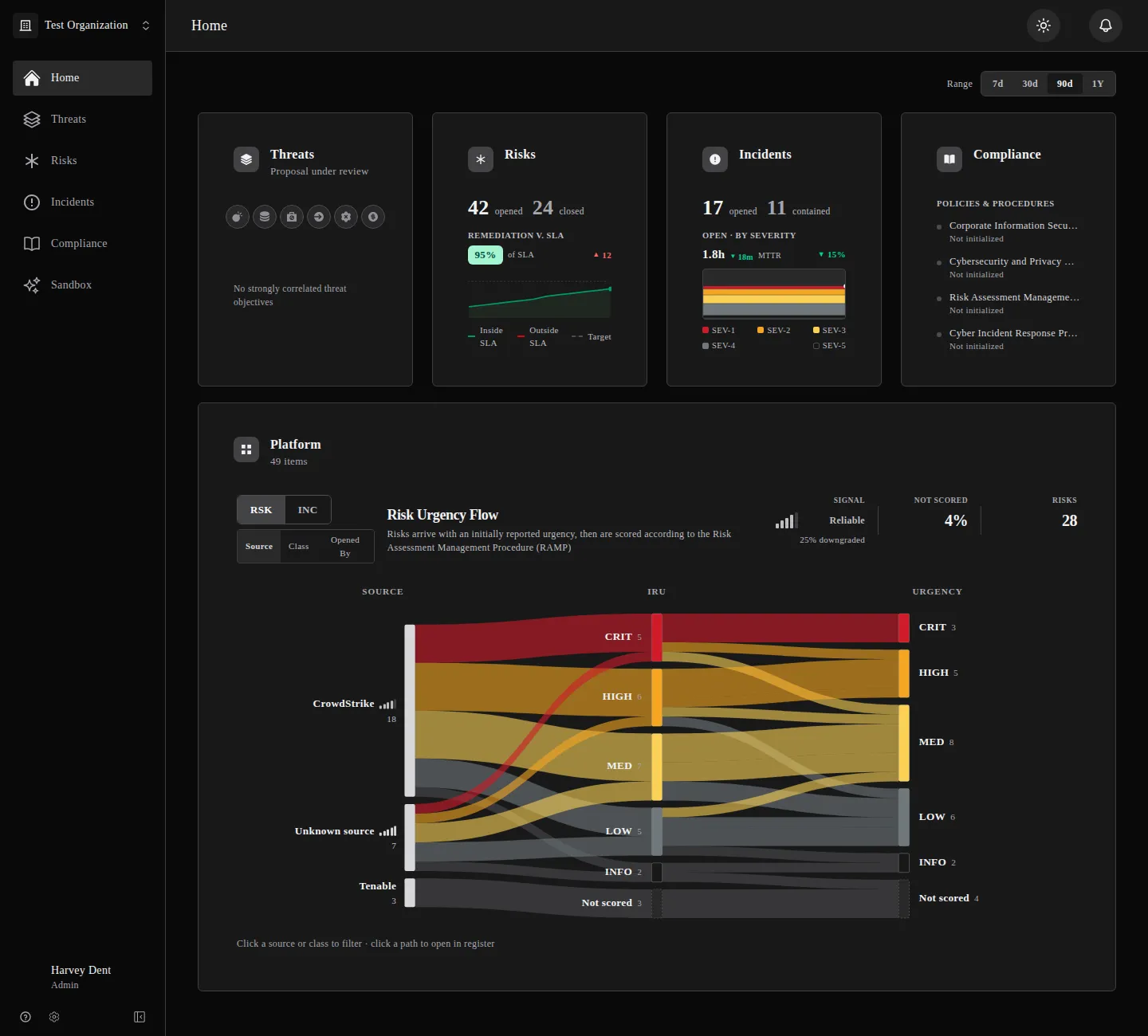
Section titled “Dark Mode”The platform now supports a dark color theme. Turn it on from Settings > Preferences — the Dark Mode toggle follows your system’s light/dark setting by default, or you can switch it on or off manually. The change applies immediately across every page, including registers, modals, charts, and the Compliance module.
Show Child Incidents in the Incident Chart
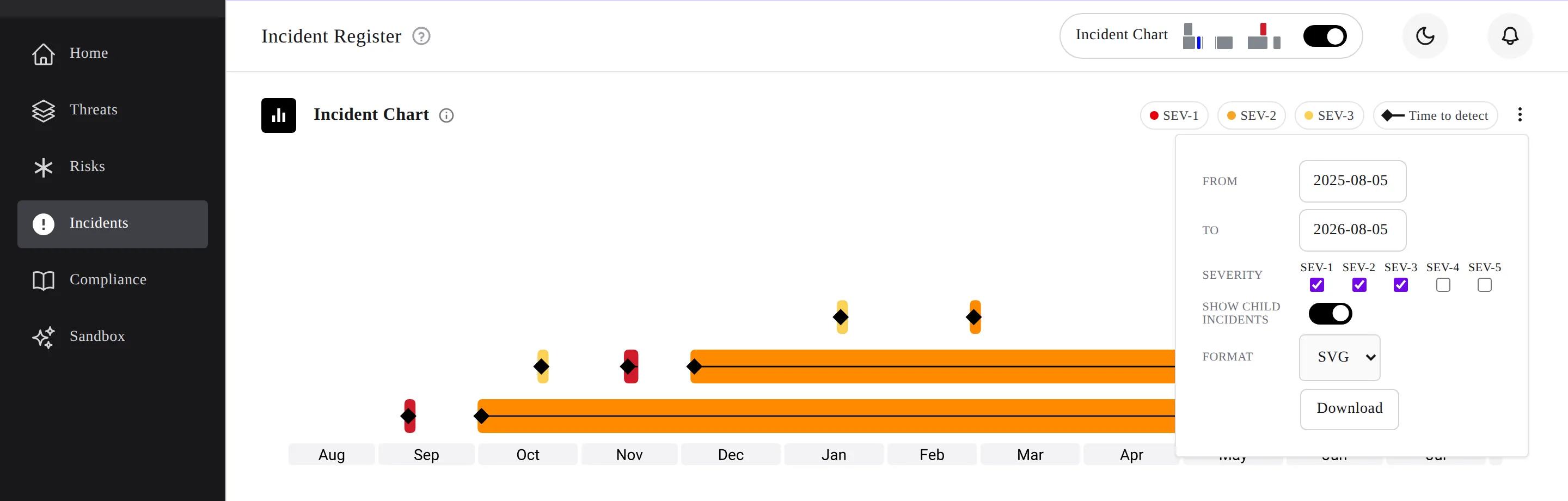
Section titled “Show Child Incidents in the Incident Chart”The incident chart’s Chart options menu now includes a Show Child Incidents toggle, off by default. Turning it on folds linked child incidents into the chart alongside their parents, rather than plotting parent incidents only — the same behavior as the equivalent toggle on the Remediation Agility chart.
Mentions Me Quick Filter
Section titled “Mentions Me Quick Filter”A new Mentions Me quick filter joins Assigned to Me on the risk and incident registers. Turn it on to see only items where you’ve been @-mentioned in an active comment — the same mentions that generate your notifications.
Shift-Select Ranges in User Filters
Section titled “Shift-Select Ranges in User Filters”The Opened By, Updated By, and Assigned To filters on the risk and incident registers now support shift-click range selection. Check one row, shift-click another, and everything between them is selected — no more clicking through a long list of users one at a time.
Improvements
Section titled “Improvements”Home Page Header Stat Tooltips
Section titled “Home Page Header Stat Tooltips”The flow-chart header stats on the Home dashboard — Signal, Not Scored, and the Risk/Incident counts — now explain themselves on hover, including how the signal-quality bands (Very Reliable through Very Noisy) are defined.
Enhanced Report Narratives
Section titled “Enhanced Report Narratives”AI-generated report narratives no longer mix figures from different populations of risks into a single stated number — each figure a narrative cites now refers to exactly the population it describes. Report narratives also agree with the dashboard: the “Opened” figure on a generated report’s risk and incident cards now uses the same definition — everything discovered or detected in the period, regardless of current status — as the equivalent card on the Home dashboard.
Refinements to Automatic Risk and Incident Scoring
Section titled “Refinements to Automatic Risk and Incident Scoring”Automatic scoring of risks and incidents is now faster to complete. As part of this change, the severity and urgency ratings assigned to newly scored records may differ slightly from before: roughly one in seven records shifts by one band, typically downward, which can in turn move a remediation deadline a few days earlier than it otherwise would have been. Most records are unaffected.
Centered Work Item Editor Refinements
Section titled “Centered Work Item Editor Refinements”The centered work item editor — available as an opt-in Early Adopter preview from Settings > Preferences — gains several refinements based on early feedback:
- A new Dates tab lists every configured date, including Discovered, Due, Closed, and Expected, with a persistent label — even the ones that aren’t set yet. Due Date and Closed Date show as read-only with a note explaining why, since neither can be edited directly.
- Tickets now shows Jira, ServiceNow, and Linear tickets side by side.
- The Tags field keeps a visible label once tags are added, instead of losing its identity when populated.
- Multi-editing several incidents at once from the centered editor now includes a Parent Incident picker, so a selection can be bulk-linked under a shared parent incident — matching the bulk parent-risk linking that already existed for risks.
- Two issues that could make the editor appear to have unsaved changes when it didn’t are fixed: saving a risk whose due date shifts automatically no longer leaves Save lit with nothing left to save, and opening a record from a direct link no longer shows its description as edited before you’ve made any changes.
- Switching between Comments, History, and All in the activity section now scrolls that section into view automatically.
Incident Chart Default Severity
Section titled “Incident Chart Default Severity”The incident chart’s severity filter now opens with SEV-1, SEV-2, and SEV-3 checked by default, rather than all five severities. Both lower severities remain in the menu — one click adds them back to the chart.
ServiceNow: Faster Ticket Lookups, New Standard Table
Section titled “ServiceNow: Faster Ticket Lookups, New Standard Table”Looking up a ServiceNow record by its ticket number is now faster. Ticket has also been added to the standard table options when configuring which ServiceNow tables the integration searches and creates records in.
Adversarial Key Risks (AKRs) Retired
Section titled “Adversarial Key Risks (AKRs) Retired”Adversarial Key Risks (AKRs) — risks previously generated automatically from threat intelligence and injected into your risk register based on your Threat Profile — have been removed from the platform. Existing AKR records, their comments, and any saved filter views scoped to them have been removed from organizations’ risk registers. The What-if Report preview on the Threat Profile page, which showed the risk register impact of a hypothetical profile change before saving, has also been removed.
Your Threat Profile and Threat Objectives are unaffected: threat objective sliders, saving, and approval continue to work as before, and Threat Objectives continue to inform the Home dashboard and Cybersecurity Policy. Risks you or your integrations create directly are not affected.
One Definition of “Opened” Across Dashboard and Reports
Section titled “One Definition of “Opened” Across Dashboard and Reports”The Opened counts on the Home dashboard’s Risks and Incidents cards now count every risk discovered — and every incident detected — inside the selected range, whether or not it has since been closed, matching the cards in generated reports. Previously the dashboard only counted records that were still open, so the same range could read differently on the dashboard and in a report. Clicking the count opens the register filtered to the same population, with no status filter applied.
The report’s risk card now also follows the report’s Urgencies Included selection, like the tables and narrative on the same slide, and its Remediation v. SLA figure reads the whole open backlog — as the dashboard always has — rather than only risks discovered inside the period. One consequence: because unscored risks belong to no urgency band, the report card never counts them, while the dashboard’s unfiltered card does. The narrative reports unscored discoveries as their own figure so they are visible rather than silently dropped. See Home and Compliance for the definitions.
Sticky Register Columns, Direct Integration Docs Links, and a Tooltip Delay Fix
Section titled “Sticky Register Columns, Direct Integration Docs Links, and a Tooltip Delay Fix”- The ID/checkbox columns on the risk and incident registers now stay pinned to the left while you scroll through the rest of the table.
- Learn More on an integration’s setup screen now opens the actual documentation page for that integration, rather than a modal with static text.
- Fixed a bug where a tooltip could pop up instantly instead of respecting its normal hover delay, right after another tooltip had just been shown.
Other Fixes
Section titled “Other Fixes”- Incident-only users (for example, an Incident Editor role without risk access) no longer see a permission-error notification when opening the Incidents page.
- Broken links and server errors now show a proper in-app error screen — for example, an unknown risk ID shows “Risk Not Found” with a link back to the register, and server errors show a Try Again button — instead of a blank page or a silent bounce back to the register.
- Faint/secondary text throughout the app is very slightly darker, improving contrast.
- Switching organizations in one browser tab now updates any other open tabs to match automatically, rather than leaving them showing the previous organization until refreshed.
- Collapsed sidebar icons on settings pages are now consistently sized and centered, and the sidebar’s scrollbar is thinner and appears only on hover.