Program Documentation
The Compliance module maintains your organization’s governance documents as living records: you author them in the platform, changes go through an approval step, and every document carries a version history. This page covers the catalog and the document lifecycle — for attaching your own content to a document, see Organizational Supplements; for the generated report, see Governance Reports.
As part of onboarding, new users should review the procedure(s) relevant to their role and responsibilities.
The Document Catalog
Section titled “The Document Catalog”The Compliance landing page groups the documents the way the program is organized — Governance, then Program Documentation split into Procedures and Policies. Each card shows the document’s code, a one-line summary, and its current state — including its version and who last approved or modified it once the document is in use. A document your organization hasn’t set up yet offers Initialize, which creates your organization’s first version of it.
Governance
Section titled “Governance”CyberGov Committee Charter (CHTR) — establishes the Cybersecurity and Privacy Governance (CyberGov) Committee that oversees management’s implementation of the organization’s cybersecurity and privacy risk programs. It sets out recommended committee composition, common titles and roles, and the duties and responsibilities of each member. See CyberGov for running the committee itself.
Risk Assessment Management Procedure (RAMP)
Section titled “Risk Assessment Management Procedure (RAMP)”The RAMP is your organization’s procedural guide for risk management: it governs how risks are assessed and managed end to end, defining the fields that matter, the scoring methodology for likelihood, impact, and urgency, and the workflow a risk follows from intake to closure. It doubles as a training guide for analysts working the risk register and as audit-ready evidence of how risk management operates.
The RAMP is also the most important document behind the platform’s AI: it is the embedding AI risk scoring reads. Every AI-suggested likelihood and impact is scored per the RAMP, so tuning the procedure tunes the scoring — the document and the platform’s behavior stay in lockstep. See AI Features.
Cyber Incident Response Procedure (CIRP)
Section titled “Cyber Incident Response Procedure (CIRP)”The CIRP is the equivalent procedural guide for incident management: it governs how your organization responds to cybersecurity incidents, defining the severity levels with concrete examples, escalation and notification paths, and how an incident is managed from detection through containment. It serves as a training guide for responders and ensures a common rubric is applied across every incident.
Like the RAMP, the CIRP is an AI embedding: it is the document AI severity scoring reads, so every proposed severity follows the CIRP’s definitions rather than an analyst’s gut feel — and adjusting the CIRP adjusts how incidents are scored. See AI Features.
Policies
Section titled “Policies”Corporate Information Security Policy (CISP) — defines the required and expected behaviors for fulfilling information security and privacy obligations across the organization, section by section: acceptable use, identity and access, data classification, encryption, network security, third-party risk, and more. Most sections carry a posture selector, so the policy states your organization’s actual stance rather than boilerplate.
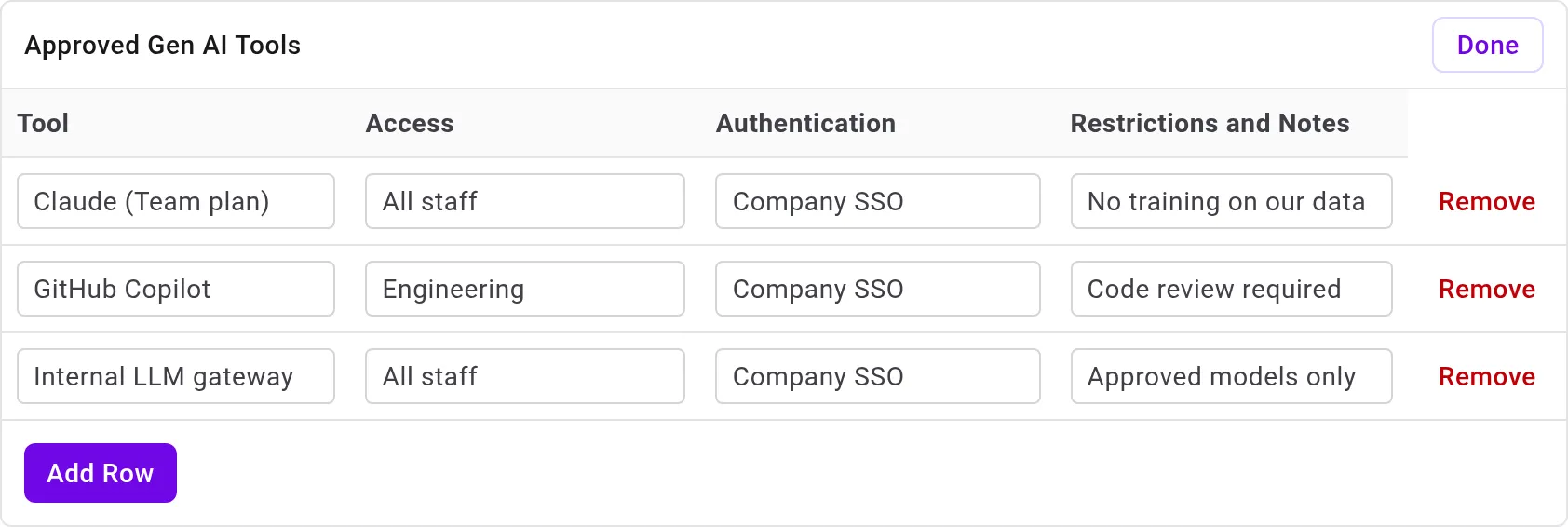
Generative AI Acceptable Usage Policy (AIUP) — establishes baseline guidelines, risks, and acceptable-use expectations for generative AI tools and data: who governs AI usage, what usage is authorized or prohibited, and how AI-generated work is handled. Its Approved Gen AI Tools register (Appendix A) records the tools your organization has cleared and the access, authentication, and restrictions attached to each.
Bug Bounty Program Scope (BBP) — governs your bug bounty program: what’s in and out of scope for testing, how researchers report findings, the safe-harbor terms they test under, and eligibility and payout expectations for public and private programs.
The Document Viewer
Section titled “The Document Viewer”Opening a document shows it as a full page: a collapsible section list, a search box for finding a passage, an Expand all sections control, and a download button that produces a Word (DOCX) copy reflecting your selections and any enabled supplements.
Documents are edited directly in the viewer:
- Posture selectors — sections that offer a policy stance present three levels, from Permissive (most lenient) through Moderate to Restrictive. The surrounding prose updates to match the level you choose.
- Coordinated selections — some choices, such as the AIUP’s governance body or authentication posture, update every passage in the document that depends on them, so the document always reads consistently with what you picked.
- Editable tables — registers inside a document, such as the AIUP’s Approved Gen AI Tools (Appendix A), are edited in place: select Edit, add or remove rows, fill in the cells, and select Done.
Proposals and Approval
Section titled “Proposals and Approval”Edits don’t take effect immediately. Saving a change records it as a proposal, and the document shows a banner — Proposed changes are pending approval — with Approve and Reject actions for users permitted to manage documents. Until the proposal is decided, readers continue to see the approved document.
Versions
Section titled “Versions”Every document carries a calendar-based version number in YYYY.MM.NN form, such as “2026.09.01”. The viewer’s tabs show where each version stands:
- Live — the version your organization is on, and the one readers see.
- Archive — versions you’ve moved past, kept for reference with a count in the tab.
- Draft — appears while a new version is under review, before it replaces the live one.
The banner above the document names the live version and who last approved or modified it.
Adopting a New Version
Section titled “Adopting a New Version”When Adversarial publishes a newer version of a document, the viewer shows an Update available banner naming the version that’s ready to review, with a Review action. Adopting is opt-in: nothing about your current document changes until you decide.
- Select Review to open the new version as a draft. Your organization’s selections carry into it, and you can edit the draft like any document.
- When you’re satisfied, select Approve & Replace to make the new version live. The version you were on moves to the Archive tab.
- Rejecting the draft abandons the adoption — your current version stays live, and the update remains available to review later.
There is no forced upgrade: an organization that stays on its current version keeps it unchanged.