Organizational Supplements
Supplements let you attach your organization’s own content to a specific section of a compliance document — for example, adding a contractor-device rule beneath your Cybersecurity Policy’s Acceptable Use section, or region-specific escalation detail to the CIRP. The platform-maintained document text stays intact; your supplement travels with the section it belongs to.
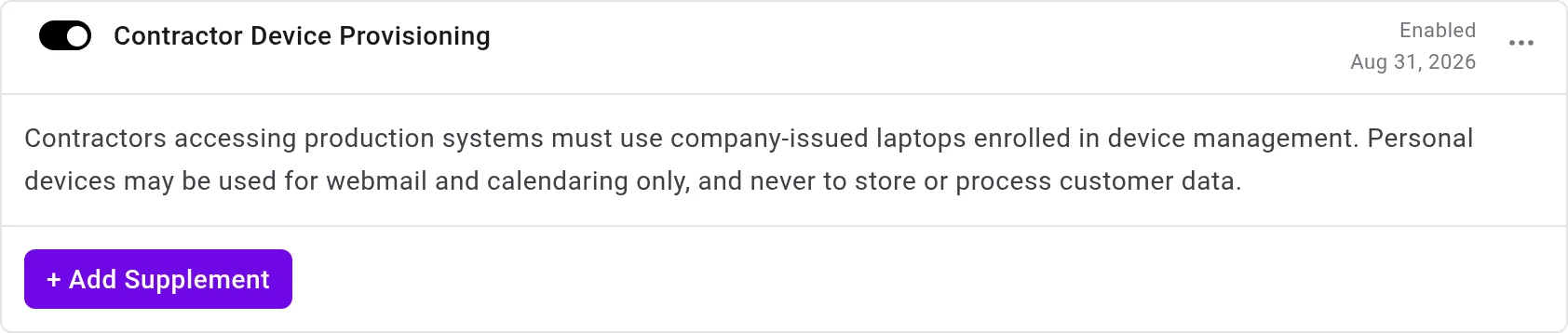
Adding a Supplement
Section titled “Adding a Supplement”- Open the document from the Compliance page and expand the section the content belongs to.
- Select + Add Supplement at the end of the section.
- Give the supplement a title and write its prose, then select Save.
Like any other document edit, a saved supplement becomes part of a proposal and takes effect once the proposal is approved — see Proposals and Approval. Each supplement shows when it was added and by whom.
Managing Supplements
Section titled “Managing Supplements”Each supplement row carries its own controls:
- Enable toggle — turns the supplement on or off without deleting it. Only enabled supplements appear in the document readers see and in the Word (DOCX) download; a disabled one stays listed for editors, ready to re-enable.
- Edit — reopen the title and prose for changes.
- Duplicate — copy an existing supplement as the starting point for a new one.
- Delete — remove the supplement from the section.
A supplement labeled Managed is provided by Adversarial as part of the document template rather than authored by your organization; managed supplements can’t be edited or deleted.
Where Supplements Appear
Section titled “Where Supplements Appear”An enabled, approved supplement renders inside its section in the on-screen document and is included in the downloaded Word copy, so the document your auditors and staff read is the same one the platform maintains — your additions included.
Each supplement appears under its label, one heading level below the policy section it belongs to, so it reads as part of that section in the viewer and in Word and Markdown exports. When a section has more than one supplement, they are listed in the order they were first written, oldest first, and keep that order when you reload the page.