Scoring and Remediation
Once the relevant fields have been captured, the next step in the lifecycle of a risk is to identify its true urgency by assigning values for Likelihood and Impact. The combination of these two fields produces the Urgency score, which sets a Due Date based on the SLA.
AI Suggest Score
Section titled “AI Suggest Score”You can score risks in three ways: manually, with AI for a single risk, or with AI in bulk.
Manual Scoring
Section titled “Manual Scoring”Open the risk and select Likelihood and Impact values. The Urgency score is assigned automatically based on the combination selected. Click Save to populate the Due Date.
Single-Risk AI Scoring
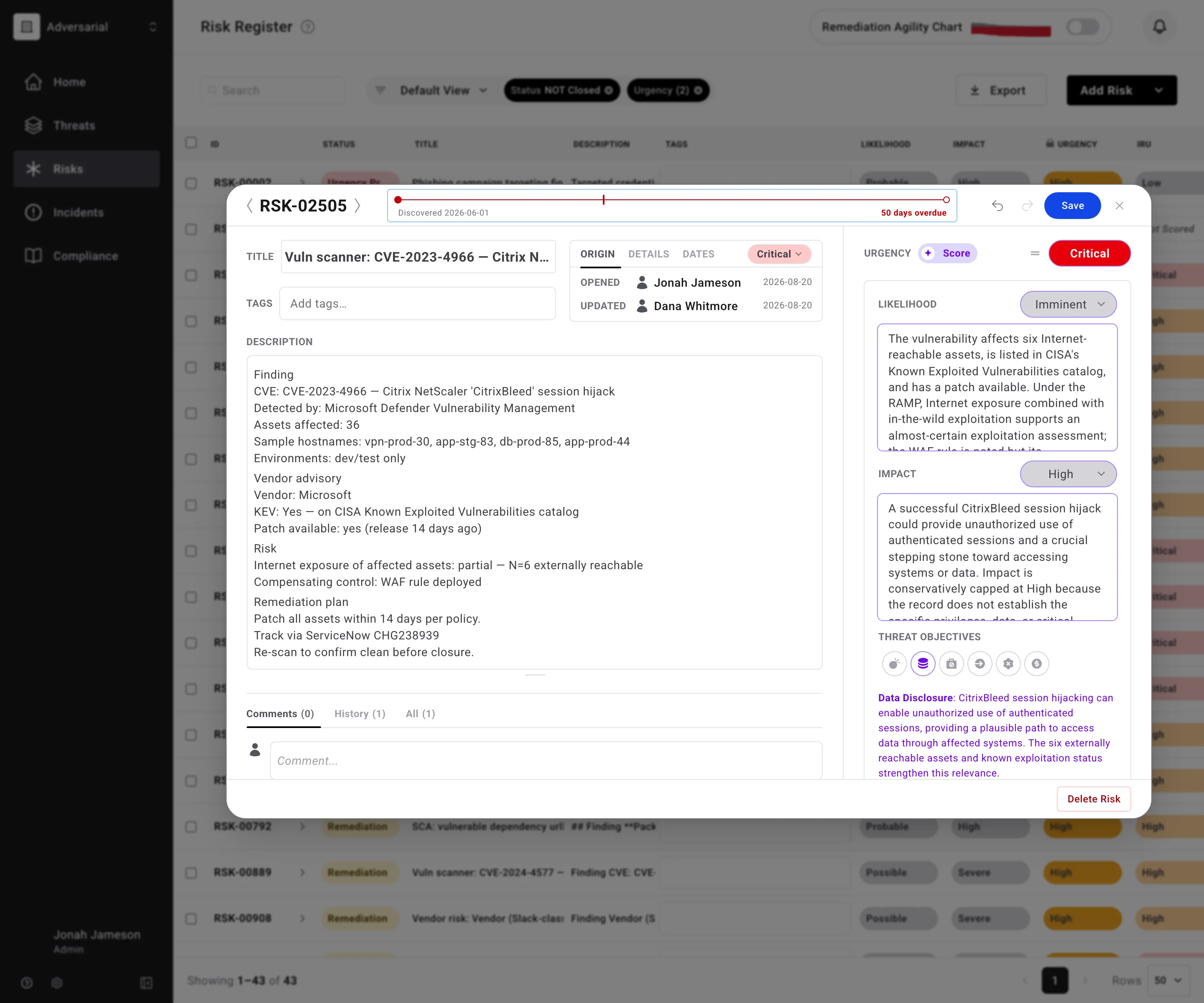
Section titled “Single-Risk AI Scoring”Open the risk modal and click the Score button next to the Urgency label to run AI scoring. The AI proposes values for Likelihood and Impact with violet borders and displays its reasoning beneath each field, along with relevant Threat Objectives. If the rationale resonates, click Save in the modal header to accept. The reasoning is saved to the risk and, for risks still in New, the status updates to Urgency Proposed.
Bulk AI Scoring
Section titled “Bulk AI Scoring”Navigate to the table view and select one or more risks using the checkboxes. A toolbar will display the option for AI Scoring. Click the sparkle icon to start bulk scoring. If any items were previously scored, you will see a notice. Click Proceed to rescore, review the results, and Save. Scored risks still in New update to Urgency Proposed; risks in a later status keep it.
Automatic Scoring and Rescoring on Integration Sync
Section titled “Automatic Scoring and Rescoring on Integration Sync”The Adversarial integration configuration supports auto scoring and auto rescoring integration-sourced records. The toggle to enable AI scoring is set at a tool level (Wiz, HackerOne, Bugcrowd, watchTowr, GitHub Dependabot). When enabled, records are AI scored when ingested and rescored whenever the source tool updates the description of an existing risk.
The automatic rescore covers the same outputs as a manual run - Likelihood and Impact, scoring rationale, and Threat Objectives. AI-suggested threat objectives are only added when the risk has none yet; objectives already on the risk are left unchanged. This auto scoring feature supports the continuous lifecycle updates until a risk is completely remediated.
Jira Integration
Section titled “Jira Integration”After assigning Urgency and the Due Date of a risk, the next step is remediation. In the Adversarial platform, you can enable integrations with service ticketing tools – such as Jira – to create relationships and manage remediation work. Once the integration is enabled, you can either create a new ticket or link to an existing ticket. A single risk can have one or multiple tickets associated.
To associate a ticket, open an RSK that requires remediation and scroll to the ticketing integration section towards the bottom of the detailed view.
Create a New Ticket
Section titled “Create a New Ticket”Select + Create Ticket. The ticket is automatically populated with the Title and Description from the RSK. Within Jira, the Labels field will show Adversarial, the RSK ID, each assigned Tag, and each Threat Objective assigned at strong correlation.
Link an Existing Ticket
Section titled “Link an Existing Ticket”In the Tickets section, start typing in the Search Jira box to find an issue by summary or key, and select it to associate it with the RSK.
Once a ticket is associated, set the risk’s status to Remediation to indicate work is underway.
Remediation Agility Chart
Section titled “Remediation Agility Chart”The Remediation Agility chart illustrates how effectively your organization reduces residual risk over time. It presents a rolling 365-day view of risks opened and closed each day, mapped against their assigned SLA — High and Critical urgencies by default, adjustable with the chart’s Urgency filters.
The chart is driven by four fields: Urgency, Discovered Date, Due Date, and Closed Date. Each column represents a snapshot of the risk register on a particular day:
- A gray point represents an open risk that has not passed its due date.
- A red point represents an open risk that has passed its due date.
The chart shifts conversation to a high-level overview of realized remediation outcomes for senior leadership and the Board of Directors. Instead of debating thousands of granular findings, you can focus on whether classification of High vs. Critical is appropriate, whether SLAs are meaningful, and what may be driving delays.
The chart is included as the primary risk slide in the generated compliance report, exported as an editable PPTX file.
Including child risks
Section titled “Including child risks”By default the chart plots parent risks only. When related risks are grouped under a parent, the parent stands in for the group, which keeps the leadership view readable instead of counting every individual finding.
To fold the grouped children in as well, open the chart’s kebab menu – Chart options – and enable Show Child Risks. The toggle sits between the Urgency filters and the Format selector, alongside the chart’s date range and download controls.
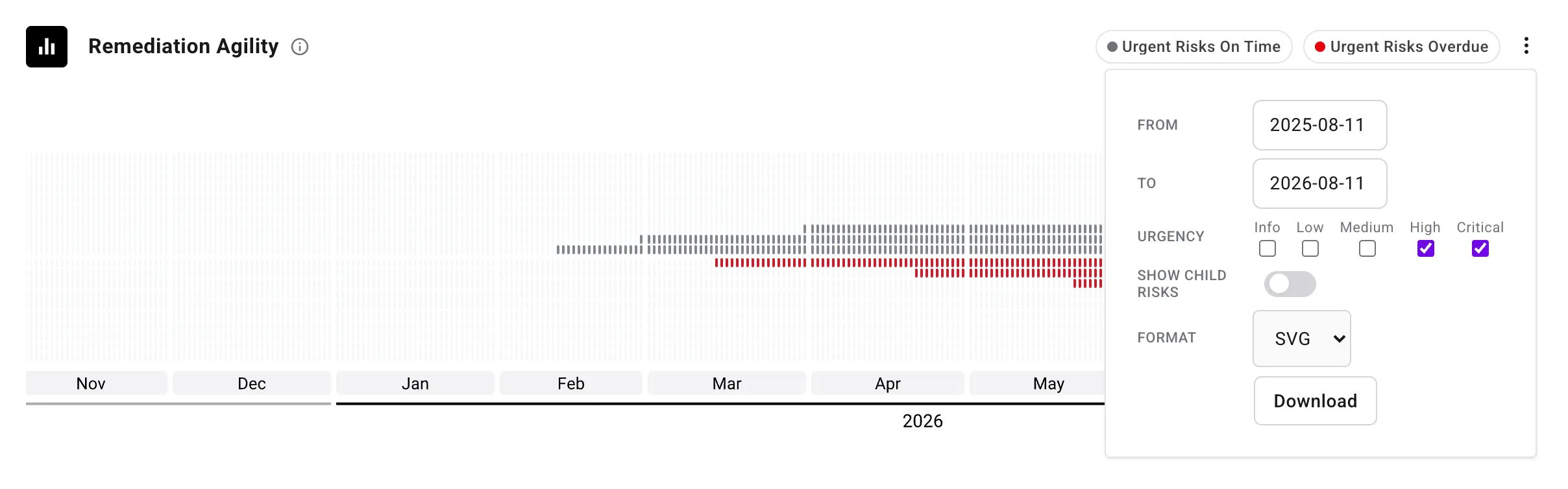
The toggle starts off again each time you open the chart, and it affects only what this chart plots – your risk register view and any filters you have applied are unchanged. The Remediation Agility slide in a generated compliance report always plots parent risks only, unless Include child risks is enabled when generating the report.
For how parent and child risks are grouped in the first place, see Linked Risks.