User Mentions
You can pull a specific teammate into a discussion by @-mentioning them in a comment on a risk or incident. The person you mention is notified and linked straight back to the record, so a question reaches the right owner without a separate email or chat message.
Mentioning someone
Section titled “Mentioning someone”In the comment box on any risk or incident, type @ followed by part of a name. A picker opens with matching people; select one to insert the mention, then submit the comment as usual.
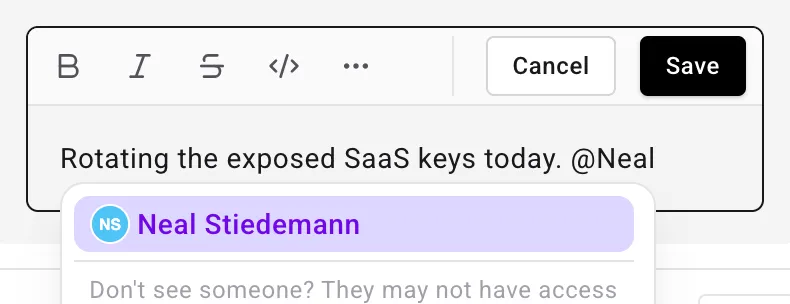
The picker lists only people who already have access to the record you are commenting on. Someone whose roles do not permit them to read that risk or incident never appears in the list, so a mention cannot expose a record to a person who was not already allowed to see it. When a name you expect is missing, that is the usual reason — the picker keeps a standing reminder to that effect.
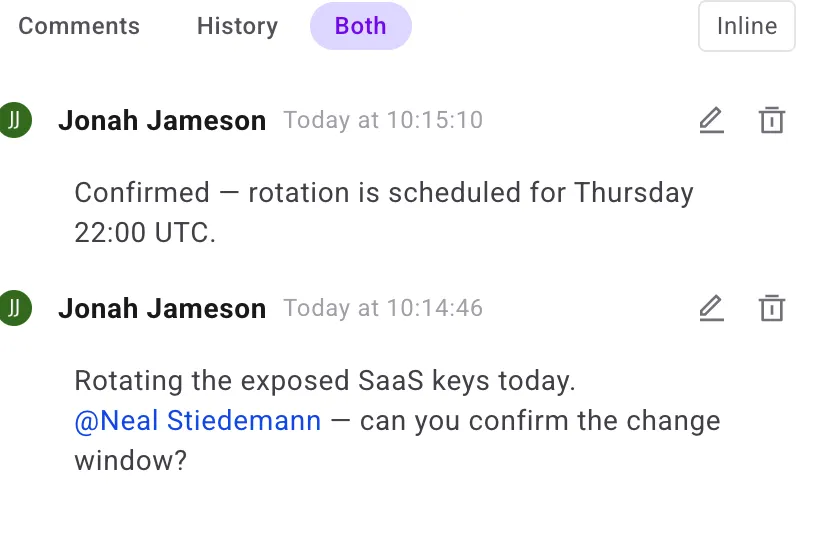
Once the comment is posted, the mention appears inline in the comment thread, styled to stand out from the surrounding text. Hover it to see the mentioned person’s email address.
How mention notifications are delivered
Section titled “How mention notifications are delivered”Everyone you mention in a comment receives a Mentioned notification pointing back at the risk or incident. If someone later loses access to that record, or their account is deactivated, they stop receiving notifications about it — mentions included.
Delivery is set per user in Settings > Notifications, where Mentioned sits in the Default category alongside assignments and organization invitations.
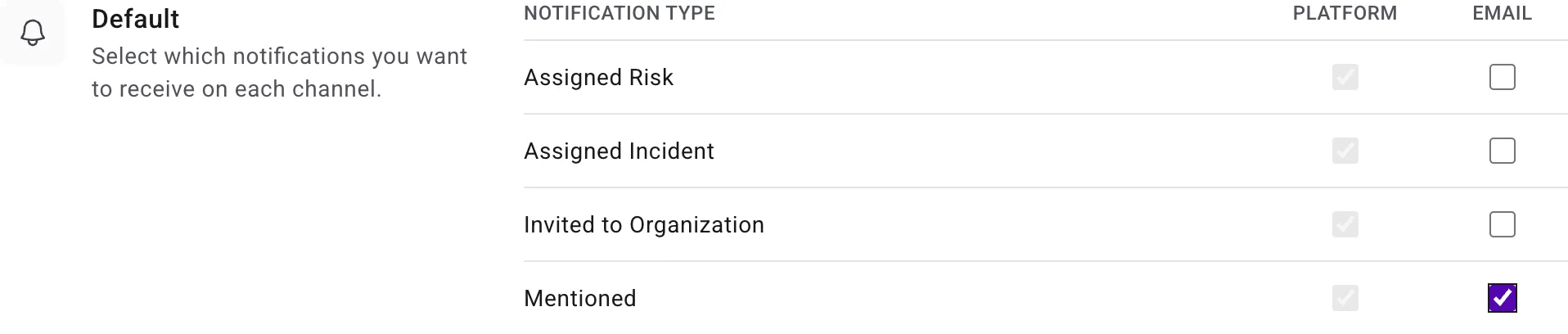
Like everything in that group, in-platform delivery is always on — its Platform checkbox appears checked and greyed out, so a mention can’t be missed entirely. Email is the part you control: tick it on the Mentioned row if you also want mentions in your inbox.
For the full list of notification types and how to configure delivery channels, see Notifications. For shared Slack and Teams delivery, see Org-Level Notifications.