September 2026
New Features
Section titled “New Features”File Attachments on Risks, Incidents, and Comments
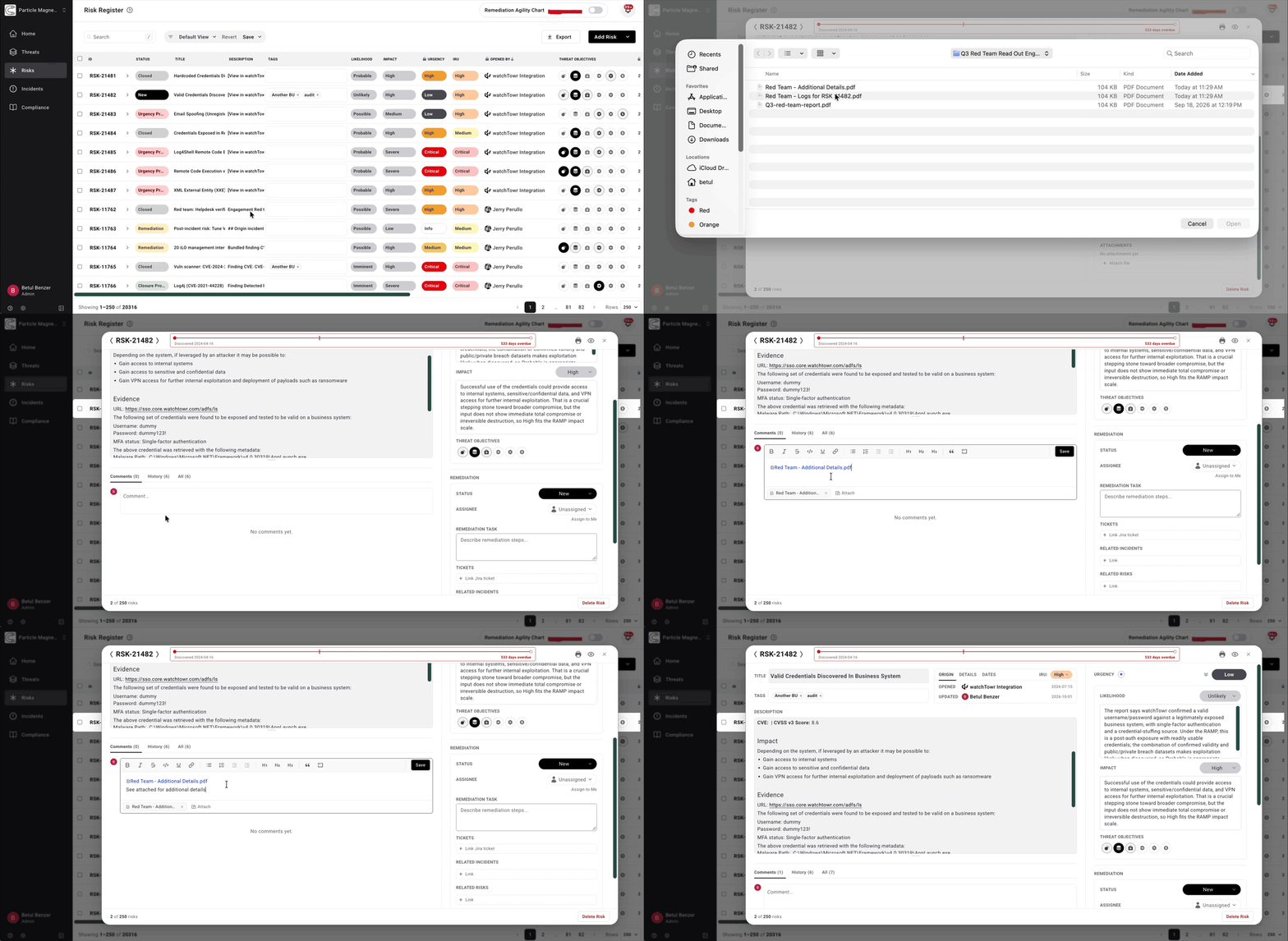
Section titled “File Attachments on Risks, Incidents, and Comments”You can now attach files to a risk, an incident, or a comment on either. Supported types are PDF, Word, Excel, PowerPoint, PNG, and JPEG files, up to 25 MB each.
To add a file, drag and drop it onto the Attachments section or click Attach file and choose it from your file picker. Additionally, you can upload a file into a comment. Files added to a comment appear inline. These files are also visible in the Attachments section for easy access. Members with read-only access can view and download attachments but not add or remove them.
Editable Comparison Period for Reports and Decks
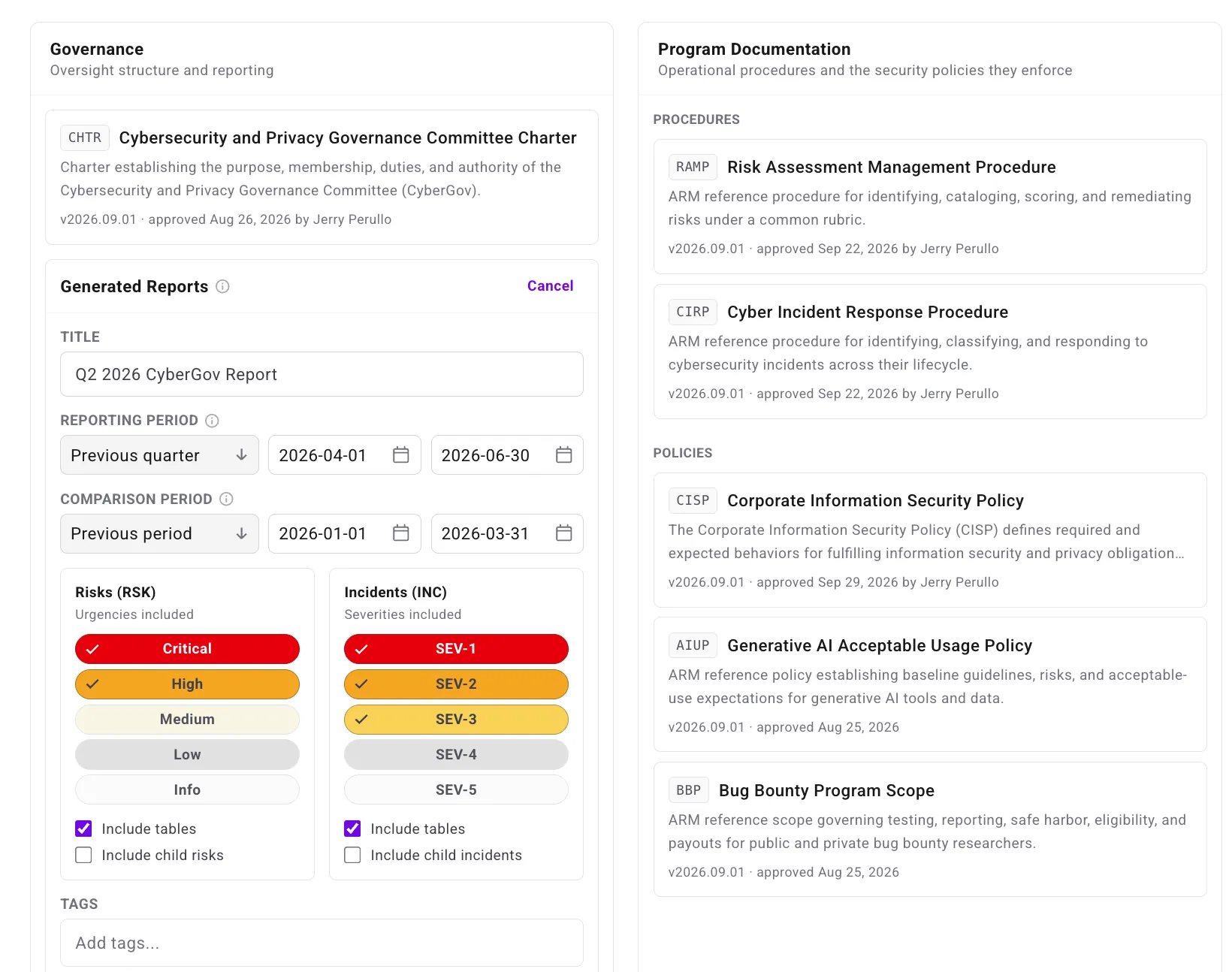
Section titled “Editable Comparison Period for Reports and Decks”The report form now has a Comparison Period row where you choose Previous period or Custom and edit the start and end dates directly. Errors, such as a comparison window that overlaps the reporting period, show inline, and Generate stays disabled until both windows are valid. Overview cards show the comparison window under “Reporting Period v. Previous”.
Governance Deck References Say What They Count
Section titled “Governance Deck References Say What They Count”Each row on a governance deck’s references slide now describes the population behind its link, for example “828 Critical or High risks closed (2026-01-01 – 2026-03-31)”, instead of a bare figure or word. Every row states the count, what was counted, the urgency or severity selection, and the date window, and prior-period rows are labelled as such.
Command Palette and Document Search
Section titled “Command Palette and Document Search”Press Cmd/Ctrl+K anywhere in the platform to open a new command palette. Type a risk or incident ID (for example RSK-42) to jump straight to it, or type free text to search across risks, incidents, and compliance documents at once — documents are now included in search for the first time. The palette also surfaces actions relevant to where you are, such as switching your theme.
Pressing / focuses the register’s search box directly, the same shortcut used by GitHub and Jira.
AI Assistants Can Read and Propose Changes to Compliance Documents
Section titled “AI Assistants Can Read and Propose Changes to Compliance Documents”AI assistants connected through the MCP server can now work with your compliance documents, not just risks and incidents. An assistant can list available document versions, read approved policy sections, propose edits — including organization-specific supplements — and review or approve/deny a pending proposal, using the same approval workflow as edits made in the document viewer. Only approved, published content is visible by default; a proposal’s contents stay private until it’s explicitly reviewed.
Post-Incident Review: One Setting for the Whole Decision
Section titled “Post-Incident Review: One Setting for the Whole Decision”The Cyber Incident Response Plan’s (CIRP) Post-Incident Review setting has been consolidated from two separate controls into one. Choose a single minimum severity — from SEV-5 and above down to SEV-1 only — or exclude the Post-Incident Review requirement entirely. Previously, two different parts of the document could each state a different rule for when a review was required.
Redesigned Policy and Procedure Document Exports
Section titled “Redesigned Policy and Procedure Document Exports”The Word document you download from a policy or procedure now opens with a proper title page — your organization’s logo and name, the document title, and its last modified/approved dates — followed by a table of contents that jumps to any section, and a body with numbered sections and lettered sub-lists.
Improvements
Section titled “Improvements”Larger Work Item Editor on Big Screens
Section titled “Larger Work Item Editor on Big Screens”The work item editor now scales up on larger displays to make better use of the space.
Faster Manual Risk and Incident Scoring
Section titled “Faster Manual Risk and Incident Scoring”Scores you request manually for risks and incidents now return faster, and background scoring processes more items per run.
Microsoft Copilot Studio and Other MCP Clients Connect Without Extra Setup
Section titled “Microsoft Copilot Studio and Other MCP Clients Connect Without Extra Setup”MCP clients that don’t specify a scope or resource when connecting, including Microsoft Copilot Studio, can now complete sign-in and use the MCP server. The consent screen shows the permissions being granted, limited to what you personally have access to.
One Work Item Editor
Section titled “One Work Item Editor”The centered work item editor, previously available as an opt-in Early Adopter preview from Settings > Preferences, is now the only editor for risks and incidents. The classic side-panel editor and the preview toggle have both been retired.
Governance Deck Tables Grouped by Urgency and Severity
Section titled “Governance Deck Tables Grouped by Urgency and Severity”Risk and incident tables in generated board decks and CyberGov reports are now grouped by urgency or severity band, with Closed items listed first within each band, and each table page captioned with the band it covers. A band with no matching records no longer produces an empty table page.
Faster Dashboard Loading
Section titled “Faster Dashboard Loading”The Home dashboard and the Remediation Agility (RemAgi) chart now load faster, particularly for organizations with large risk and incident registers.
Incident response-time figures — Mean Time to Respond on the Home dashboard and the incident chart’s average response time — may shift very slightly as a result: calculations now count fractional seconds instead of dropping them, and no longer treat a response clocked before an incident’s detection time as an instant response.
Calendar Document Version Numbers Are Now Fully Padded
Section titled “Calendar Document Version Numbers Are Now Fully Padded”Compliance document version numbers now always display with two-digit month and revision numbers (for example, 2026.09.01), rather than mixing single- and double-digit forms.
Broader MCP Protocol Support
Section titled “Broader MCP Protocol Support”The MCP server now also supports the 2026-07-28 revision of the Model Context Protocol, alongside the version it already served, so AI assistants built against the newer specification can connect without issues.
Tagging Risks and Incidents at Creation
Section titled “Tagging Risks and Incidents at Creation”The API used to create risks and incidents now accepts a list of existing tags to apply at creation time, for integrations and automations that create fully-formed records in one step.
- Moving a risk to Closure Proposed no longer fills in its Closed Date automatically. The field stays editable, and the date is still set when the risk moves to Closed. Existing dates are unchanged.
- A filter with only two choices now shows the choice you selected instead of “NOT” followed by the other one. Filters that include a “Not Scored” option and filters holding retired values also describe their selection correctly.
- Pasting a multi-line cell from Excel or Google Sheets into a compliance document editor is now supported.
- If your session expires, you’re now taken straight to the sign-in page as soon as the platform detects your session has ended.
- The organization picker on the integration consent screen now scrolls to account for multi-organization users, rather than push content off screen.