Roles & Permissions
Adversarial uses a granular, role-based access control (RBAC) system. A role represents a job function or responsibility — incident response, platform administration, read-only review — so consider the actions a user will actually take when choosing their roles. Assignments are not permanent: as a member’s responsibilities evolve, Admins can change their roles at any time. Every action in the platform — viewing a risk, editing a document, approving a threat proposal, inviting a team member — is gated by one or more permissions. Permissions are grouped into roles, and each organization member is assigned one or more roles that determine what they can do.
Permissions
Section titled “Permissions”The platform defines 17 granular permissions organized into three tiers:
| Tier | Meaning | Examples |
|---|---|---|
| Read | View data in a module | risks:read, incidents:read, documents:read |
| Write | Create and edit content | risks:write, threats:write, tags:write |
| Manage | Approve workflows, configure system settings, or administer users | threats:manage, documents:manage, organization:manage |
Not every module has all three tiers. Risks and Incidents have read and write only. Integrations skip the write tier entirely — you can either view integration configuration or fully manage it.
Full permission list
Section titled “Full permission list”| Permission | Description |
|---|---|
risks:read |
View risks in the risk register |
risks:write |
Create, edit, and import risks |
incidents:read |
View incidents in the incident register |
incidents:write |
Create, edit, and import incidents |
threats:read |
View the threat profile |
threats:write |
Create and edit threat proposals |
threats:manage |
Approve or deny threat proposals |
documents:read |
View documents and download them |
documents:write |
Edit document content |
documents:manage |
Approve or deny document change proposals |
integrations:read |
View configured integrations |
integrations:manage |
Connect, configure, and remove integrations |
tags:read |
View tags |
tags:write |
Create, edit, and delete tags. Deleting an organization-wide tag also requires risks:write and incidents:write |
organization:manage |
Edit organization settings, domains, and notifications |
users:read |
View the team member list |
users:manage |
Invite members, assign roles, and deactivate accounts |
Permission tiers explained
Section titled “Permission tiers explained”Read permissions control visibility. Without risks:read, you cannot see the risk register at all — the sidebar link is locked and the page shows an access denied message.
Write permissions control content creation and editing. Every built-in role that includes write access to a module also includes read access to it.
Manage permissions control administrative and approval actions. In the Threats and Documents modules, manage permissions gate the approval workflow: write access lets a role propose changes, and manage access is what lets a role act on those proposals. Most editor roles hold both. For Organization, Users, and Integrations, manage permissions control system configuration that affects all members.
Built-in roles
Section titled “Built-in roles”The platform ships with seven built-in roles. Their permissions are maintained in code and synchronized on every deployment — they cannot be modified.
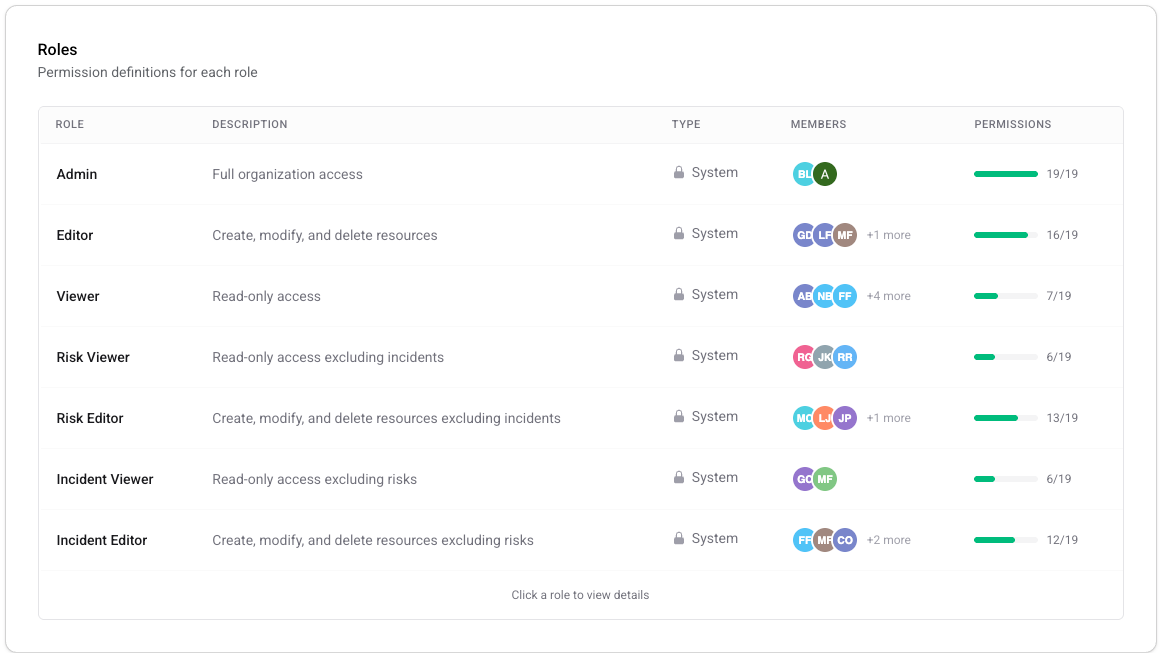
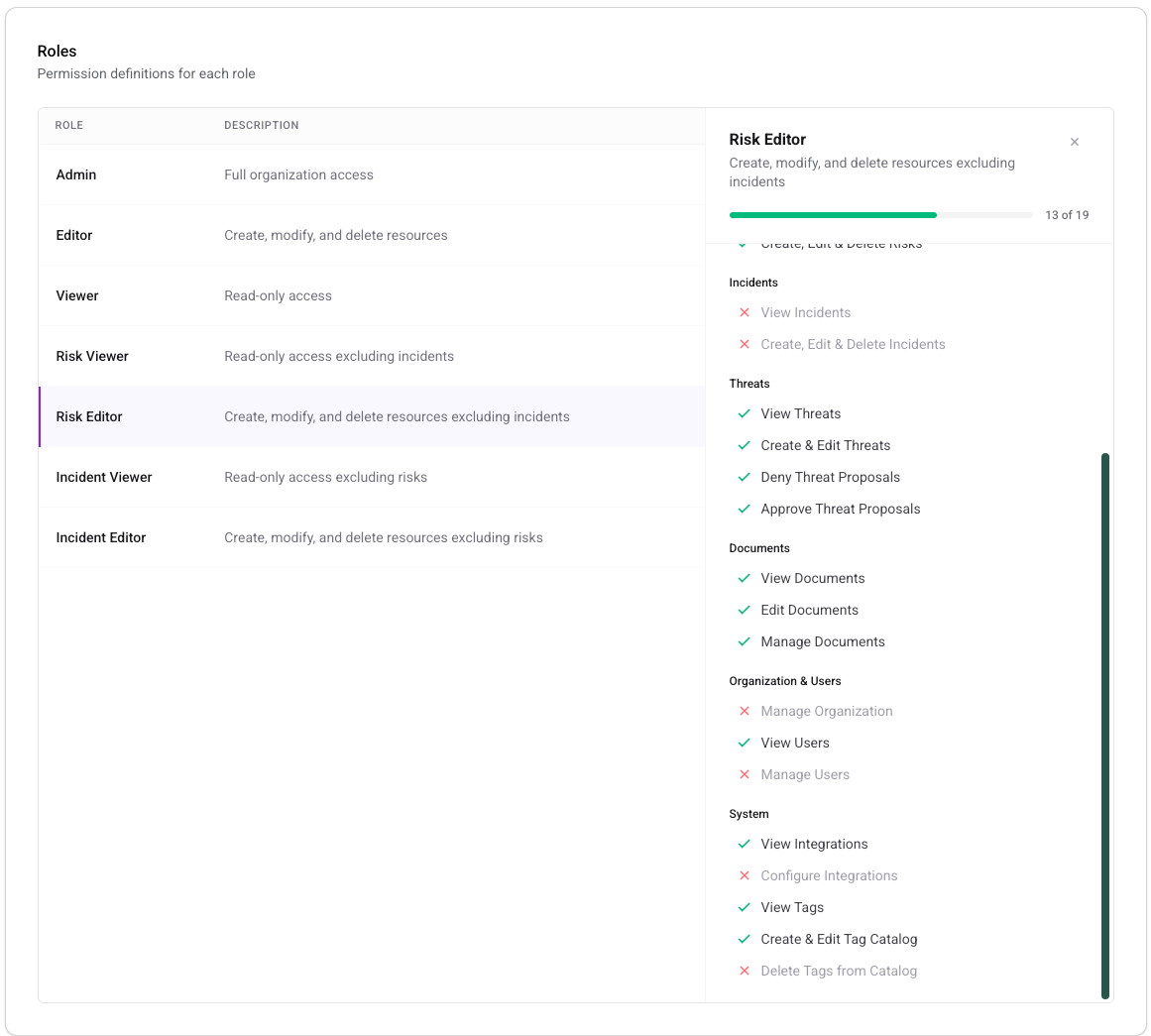
Clicking into a role opens a detail panel showing exactly which permissions it grants and which it withholds, grouped by module.
| Role | Scope | What it includes |
|---|---|---|
| Admin | Full platform | All 17 permissions |
| Editor | Full platform | Every permission except integrations:manage, organization:manage, and users:manage — including the approval permissions threats:manage and documents:manage |
| Viewer | Full platform | All 7 read permissions only. Can generate governance reports. |
| Risk Editor | Risk-focused | Editor permissions minus incidents:read and incidents:write. Can suggest and approve Threat Profile changes. |
| Risk Viewer | Risk-focused | Viewer permissions minus incidents:read |
| Incident Editor | Incident-focused | Editor permissions minus risks:read and risks:write. Can suggest Threat Profile changes and deny proposals, but cannot approve them. |
| Incident Viewer | Incident-focused | Viewer permissions minus risks:read |
The domain-scoped roles (Risk Editor, Incident Editor, etc.) are designed for organizations that separate risk and incident management across different teams. A Risk Editor has no visibility into incidents, and vice versa.
How multiple roles combine
Section titled “How multiple roles combine”A member can hold more than one role. When they do, permissions are unioned — the member gets every permission granted by any of their assigned roles. Permissions are additive; one role can never revoke a permission granted by another.
For example, a member with both Risk Editor and Incident Viewer roles gets the union of both permission sets: everything Risk Editor grants — editing risks, threats, documents, and tags, and approving threat and document proposals — plus read-only access to incidents from Incident Viewer.
Roles do not collapse
Section titled “Roles do not collapse”If a member’s combined permissions happen to match those of a higher role, the platform does not automatically upgrade or collapse their role assignment. A member holding Risk Editor + Incident Editor has the same effective permissions as an Editor, but their profile still shows two separate roles.
This is intentional. Roles represent the intent of the assignment, not just the resulting permission bits. If the Editor role later gains a new permission (say, a future reports:write), the Risk Editor + Incident Editor member would not automatically receive it — they would only get it if their individual roles are updated to include it. Collapsing roles would silently escalate permissions when role definitions change.
The admin invariant
Section titled “The admin invariant”Every organization must have at least one active Admin at all times. The platform enforces this — you cannot:
- Remove the Admin role from the last remaining admin
- Deactivate the last admin’s account
- Change the last admin’s role to a non-admin role
If you need to transfer admin access, assign the Admin role to another member first, then remove it from the original admin.
How permissions are checked
Section titled “How permissions are checked”Every API endpoint declares which permissions it requires. When a request arrives, the platform:
- Identifies the authenticated user and their current organization
- Loads all roles assigned to that user in that organization
- Unions the permission bits from every assigned role
- Checks whether the required permissions are present in the union
If the check fails, the request returns a 403 Forbidden response. The frontend mirrors this behavior — pages and actions are disabled or hidden based on the same permission checks, so users see a consistent experience without hitting permission errors.
Learn more
Section titled “Learn more”- Managing Roles — assign roles, view the permission matrix, and understand behavioral edge cases