Scoring and Response
AI Suggest Score
Section titled “AI Suggest Score”Similar to scoring risks with the AI Risk Scoring feature, the AI Incident Scoring feature reads the CIRP and the Cybersecurity Policy (both found in the Compliance module) together with the details found in the incident entry to allow for appropriate scoring and memorializing the reasoning within the incident record.
For Incident Register entries, the AI scoring feature takes into account the details captured in the Title, Description, and Comments fields. These fields are weighed against the CIRP, which defines the severity levels, and the Cybersecurity Policy, which determines what counts as authorized activity.
In addition to proposing severity, the AI Suggest Score feature also proposes Threat Objectives as part of its output. The AI identifies which threat objectives are associated with the incident and assigns them at strong correlation, but only when the incident has none yet — objectives you have already set are left unchanged. Severity reasoning is stored on the incident record alongside the score, providing a permanent audit trail of the AI’s scoring rationale.
Automatic Scoring and Rescoring on Integration Sync
Section titled “Automatic Scoring and Rescoring on Integration Sync”The Adversarial integration configuration supports auto scoring and auto rescoring integration-sourced records. The toggle to enable AI scoring is set at a tool level (GreyMatter, CrowdStrike, etc.). When enabled, an ingested record is AI scored only if the source tool did not already supply a severity, and is rescored whenever the source updates the description of an existing incident.
The automatic rescore covers the same outputs as a manual run - Severity, scoring rationale, and Threat Objectives. AI-suggested threat objectives are only added when the incident has none yet; objectives already on the incident are left unchanged. This auto scoring feature supports the continuous lifecycle updates until an incident is completely remediated.
Incidents whose severity is set directly by the source are neither scored on ingest nor re-scored later. For example, a GreyMatter incident closed with a benign close code stays at SEV-5, and CrowdStrike incidents — whose severity always comes from the CrowdStrike alert — are never AI scored at all.
Incident Chart
Section titled “Incident Chart”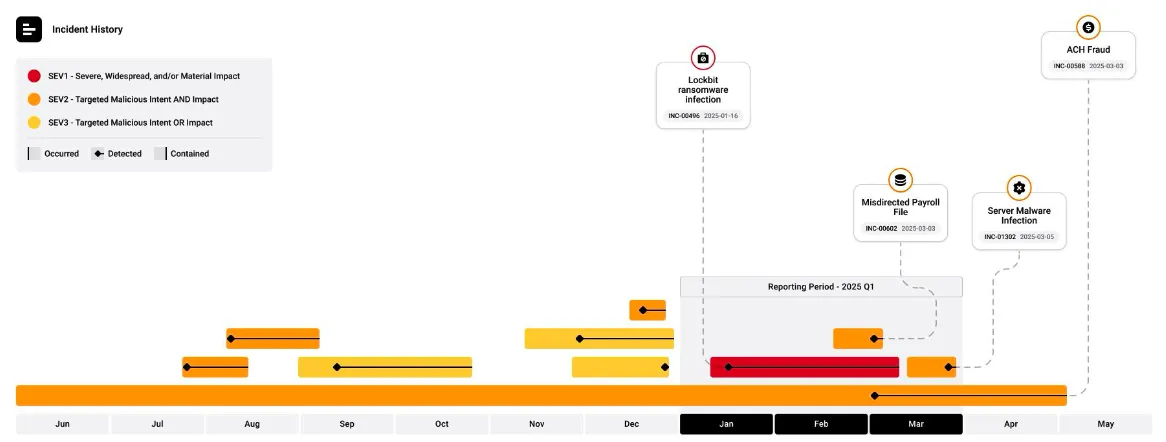
The Incident Chart shows a rolling view of incident reporting, defaulting to the trailing 12 months, and how effectively incidents are being contained — showing when they occurred, when they were detected, and when they were contained.
The chart is driven by four fields:
- Severity
- Occurred Date
- Detected Date
- Contained Date
The chart runs its own query, independent of the incident register, so paging or filtering the register doesn’t change what the chart plots.
Filtering
Section titled “Filtering”Open the chart’s kebab menu – Chart options – to set a From and To date range and choose which Severity levels (SEV-1 through SEV-5) to plot. SEV-1, SEV-2, and SEV-3 are selected by default; check SEV-4 and/or SEV-5 to add the lower severities to the plot. Unscored incidents are never plotted.
Including child incidents
Section titled “Including child incidents”By default the chart plots parent incidents only. When related incidents are grouped under a parent, the parent stands in for the group, which keeps the view readable instead of counting every individual finding.
To fold the grouped children in as well, open Chart options and enable Show Child Incidents.
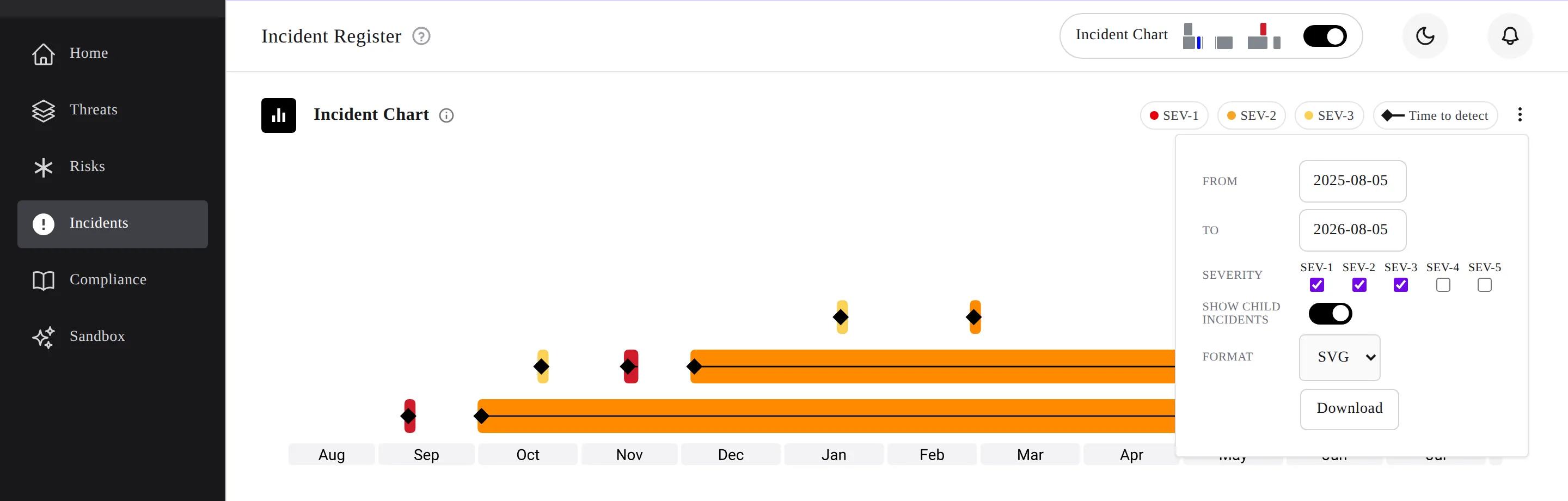
The toggle starts off again each time you open the chart, and it affects only what this chart plots – your incident register view and any filters you have applied are unchanged.
For how parent and child incidents are grouped in the first place, see Linked Incidents.
Governance Reporting
Section titled “Governance Reporting”The chart is included as the primary incident slide in the generated compliance report, exported as an editable PPTX file. Which severities appear is whatever you select under Severities Included when generating the report — by default, SEV-1 through SEV-3. A reporting-period callout highlights incidents for the current cycle, while the full-year view shows consistent incident identification and containment.
Chart Callouts
Section titled “Chart Callouts”Within the chart, callouts display for incidents in the identified reporting period. Information in callout bubbles includes:
- Threat Objective
- Title
- Incident ID
- Detected Date
The red, orange, and yellow color around the threat objective aligns with the assigned severity level.